 LIVECLAIM
INFINITUM PITTSBURGH
Start recruiting with LiveClaim
Use Google Chrome on a computer — not Firefox. This LiveClaim extension requires desktop Google Chrome 116 or later on Windows, Mac or Linux. The current ZIP is not compatible with Firefox or Safari; other browsers are not supported for this release. Keep TikTok, LIVE Backstage and LiveClaim in the same Chrome profile. Signing in to Backstage in Firefox, another Chrome profile, or an Incognito window does not sign in the extension’s check tab. The website and guides can still be read on other browsers and mobile devices.
Check creators from TikTok, keep a clear account history, and prepare invitations for review.
1. Install and connect
- For version 1.4.8, download the LiveClaim extension ZIP and extract it to a permanent folder. In Chrome, open Extensions → Manage Extensions, enable Developer mode, select Load unpacked, and choose the extracted folder containing manifest.json. This extension is installed manually; it is not yet published in the Chrome Web Store.
- Open the LiveClaim dashboard, create your own account and sign in. Free includes 25 checks per calendar month with no card required.
- Select Generate token. Copy it privately. Pin LiveClaim using Chrome's Extensions menu, then click its gold toolbar icon to open the side panel.
- In Settings, review the data-use explanation and enable creator checks. Paste the token and select Connect. The header should say Connected.
- Sign in to LIVE Backstage in the same Chrome profile. Your TikTok account needs Creator Network access and permission to use Invite creators. LiveClaim cannot grant TikTok permissions.
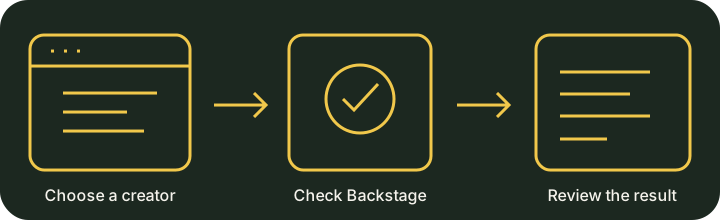
2. Check a creator
Visit the creator's TikTok profile or LIVE. With automatic checks enabled, LiveClaim runs a lookup in a background Backstage tab and reports the observed result. You can also enter a username in the side panel and select Check creator. Keep the background tab ready for faster repeat checks. Results may take up to a minute; recent automatic results are reused for five minutes by default. Check creator forces a fresh lookup.
Read the observed reason and timestamp. Ineligible can mean several things; it does not automatically mean the creator belongs to another network. Unknown or an error means no clear current verdict was obtained. LiveClaim does not guess.
3. See accounts and keep notes
The Accounts tab lists locally saved checks and can export CSV. The dashboard's Account lookups section lists cloud history. Notes are saved locally when you select Save notes; Check creator or Confirm & Save includes the notes in that saved cloud record. Disconnecting clears local notes and cache, so export anything you need first.
4. Prepare an invitation
- Ask the creator for their six-character invitation code. They obtain it from their own TikTok Creator Network settings; LiveClaim cannot retrieve a code on their behalf.
- Enter their username and code, then select Prepare for review.
- LiveClaim checks eligibility again, opens the invitation form and fills the code, English, three years, and today or the next available UTC date. You can change the relationship period and start-date preference in Settings.
- Backstage opens for your review. Verify the recipient, dates, invitation type, code and terms. Continue through TikTok's preview and send only when you are satisfied. LiveClaim never submits the invitation automatically.
Owner: grant your team permanent Unlimited access
- Each teammate creates a separate LiveClaim account.
- Sign in using your configured owner account and open Owner Admin.
- Look up the teammate's account email, choose Unlimited, leave expiration blank, and select Grant access.
- The teammate refreshes their dashboard or reconnects the extension. A permanent owner override continues independently of future billing settings. It grants product access, not owner privileges, TikTok permissions or shared history.
Staff on the private complimentary-access list receive permanent free Unlimited after signing up, verifying their email and refreshing the dashboard. No manual grant or payment is needed. For other accounts, set an expiration for temporary access. Remove override returns an account to default access; it does not remove permanent staff access. Free access includes 25 checks per calendar month after any beta transition expires.
Affiliated account risk: During Prepare invitation, LiveClaim can select Continue to invite on this specific TikTok warning, then fill the editor. It reports that the warning was acknowledged and stops before sending. The warning can indicate an affiliated account eligibility risk; review it before submitting. Other warnings require your manual review.
Extension updates
Unpacked installations do not update automatically. Download the newest ZIP from the download page, extract it over the same extension folder, then select Reload on Chrome’s Extensions page and refresh TikTok and Backstage. Keep the same folder and extension installation to retain your connection and settings.
Troubleshooting
- Offline / invalid token: check your internet connection and retry Connect with your existing token first. Only replace it if it is expired, revoked, or rejected. Tokens expire after 90 days. Revoke any lost or exposed tokens.
- Sign in to Backstage: open Backstage in the same Chrome profile, finish login or verification yourself, and confirm you can open Invite creators. Then retry.
- No matching result: check the spelling and Backstage's visible message. Unsupported or ambiguous results remain Unknown. TikTok may change its interface.
- After updating: reload LiveClaim on Chrome's Extensions page, refresh open TikTok and Backstage pages, and reopen the side panel. The footer should say 1.4.8.
- Background check stalled: bring the Backstage tab forward to resolve any TikTok verification prompt. Browsers may throttle background tabs. Do not bypass verification.
- Owner controls missing: sign in to your owner email, verify it if requested, then select Refresh account.
Contact support@infinitumlive.com. Include the extension version and error text, but never passwords, tokens or invitation codes.
Diagnostic codes and a step-by-step failed-check guide
Available in extension 1.4.8 or later. Codes describe the failed step, not a confirmed root cause. LC-000 means the check request completed successfully; it does not mean the creator is eligible. Use the actual creator result.
- Confirm the side-panel footer says 1.4.8. If not, download the current ZIP, replace files in the same folder, reload LiveClaim in Chrome Extensions, then refresh TikTok and Backstage. Keep your existing token.
- Use desktop Google Chrome, outside Incognito. In that same Chrome profile, open Backstage and finish login, account/network selection, and any verification prompt. A login in Firefox or another profile is separate.
- In LiveClaim Settings, confirm creator-check consent is enabled and the header says Connected. Connected confirms LiveClaim only, not Backstage permissions.
- Enter one creator username and select Check creator. If it fails, note the LC code and select Open Backstage check tab in the overlay or Open Backstage in the side panel. Inspect that exact tab. Is it still loading, asking you to sign in, showing a verification prompt, or missing the Invite control? Complete only prompts you understand. Never bypass TikTok verification.
- If Invite is visible, try its normal creator lookup manually. If that works but LiveClaim fails, this points to a detection or timing problem. If manual lookup fails too, resolve the visible TikTok message or ask your network owner to check invitation permissions. Retry LiveClaim once after correcting the problem.
- Open LiveClaim Settings → Help & diagnostics → Copy diagnostic report. If copying is unavailable, select the report in the box and copy it manually. Send it to support@infinitumlive.com with a screenshot of the failed Backstage tab, hiding emails, private metrics, tokens and codes. Reports do not send automatically.
The report includes extension version, Chrome major version when detectable, timestamp, three setting switches, and up to 20 local operation/result-code entries. It excludes creator usernames, account emails, tokens, passwords, invitation codes, notes, URLs and page contents. It does not prove you are signed in or have invitation permission. Select Clear diagnostic history to erase it; disconnecting also clears it.
| Code | Meaning and next step |
|---|---|
| LC-100 | LiveClaim account connection failed. Check Settings and your internet connection. |
| LC-110 | Creator checks are disabled. Review and enable consent in Settings. |
| LC-120 | Your monthly check allowance is used. Open Dashboard to review usage and plans. Saved history remains available. |
| LC-200 | Backstage did not become ready. Open the check tab, finish login in this Chrome profile, then refresh Backstage. |
| LC-210 | Invite creators control not found. Open the check tab; check account selection, permissions and loading. Being signed in alone is not enough. |
| LC-220 | Backstage username form was not found. Open the check tab and check its current screen. |
| LC-230 | Backstage did not enable the lookup. Inspect its username form and validation message. |
| LC-240 | No unambiguous matching creator result. Check spelling and the visible Backstage message. |
| LC-250 | Invitation preparation stopped. Review the Backstage form; nothing was automatically sent. |
| LC-300 | Creator result received, but saving failed. Check your LiveClaim connection before retrying. |
| LC-900 | Unexpected error. Update and reload LiveClaim, refresh TikTok and Backstage, then copy diagnostics if it repeats. |
Set up the Backstage window
- Use desktop Google Chrome. Keep LiveClaim and your Backstage login in the same Chrome profile.
- Open LiveClaim Settings. Leave Use a dedicated Backstage window and Keep the Backstage check tab ready between checks enabled.
- Select Check Backstage connection. LiveClaim opens or reuses its own window. If it comes forward, finish signing in, verification, and Creator Network selection yourself. Your account must have Invite creators permission.
- Return to TikTok and select Check Backstage connection again. Once it reports ready, select Check creator. Successful checks reuse the background window.
- If a check stops, resolve the message in the Backstage window, return to TikTok, and select Check creator to resume. Automatic retries pause while attention is needed. Use Open Backstage to inspect it at any time.
Keep the window open for faster checks. If you close it, LiveClaim creates another when needed. Invitation preparation opens a separate tab for your review and never sends automatically. Switching off the dedicated-window setting uses a background tab instead. TikTok login, permissions, interface changes and browser throttling can still interrupt checks.
Understand the result before inviting
- Available / Eligible: Backstage permits recruitment in this lookup. Prepare invitation runs a fresh check before filling anything.
- Ineligible: Read the exact observed reason. “In another Creator Network” and “Multiple account risk” are different reasons; LiveClaim does not assume one means the other.
- Claimed / Premium only: Recognized only when that explicit status appears. These labels are not inferred from general page text.
- Regular / Premium: These are invitation types, not eligibility verdicts. The observed row includes the type when Backstage displays it. LiveClaim does not invent an invitation type or change your TikTok quota.
- Unknown / Check incomplete: No supported, unambiguous result was obtained. Do not treat this as eligible or as proof the creator belongs to another network.
What invitation preparation fills
After a fresh Available result, LiveClaim prepares the selected creator, today or the next available UTC start date (or tomorrow if selected), your chosen one-, two- or three-year duration (three years by default), English, and the six-character code you entered. It stops in the editor for review. It does not retrieve private invitation codes, send invitations, select a manager/group, or sync pending, accepted, declined, expired, renewal or departure states.
Automatic checks with the panel closed
Use Google Chrome on a computer. Connect once, enable creator checks and Automatic checks, then refresh your TikTok tabs after installation or an update. The side panel can stay closed on a creator profile or a creator-specific LIVE page. The For You feed is not supported for automatic account identification. Keep the Backstage window open and signed into the same Chrome profile. Recent saved results are reused for your configured interval (five minutes by default); Check creator requests a fresh result. If Chrome, your computer, or Backstage is asleep, offline or asking for verification, checks cannot finish until it is ready again.