 LIVECLAIM
INFINITUM PITTSBURGH
Download LiveClaim
Use Google Chrome on a computer — not Firefox. This LiveClaim extension requires desktop Google Chrome 116 or later on Windows, Mac or Linux. The current ZIP is not compatible with Firefox or Safari; other browsers are not supported for this release. Keep TikTok, LIVE Backstage and LiveClaim in the same Chrome profile. Signing in to Backstage in Firefox, another Chrome profile, or an Incognito window does not sign in the extension’s check tab. The website and guides can still be read on other browsers and mobile devices.
Version 1.4.10 · Chrome 116 or later · Updated October 8, 2026
Check creators through your signed-in LIVE Backstage account, keep account history, and prepare invitations for review. Free includes 25 checks per calendar month with no card required. See paid plans and staff access.
Download LiveClaim 1.4.10 Open dashboard
Install in Chrome
- Download the ZIP and extract all files to a permanent folder.
- Open Chrome’s Extensions menu → Manage Extensions. Turn on Developer mode.
- Select Load unpacked and choose the extracted folder containing manifest.json. Keep that folder on your computer.
- Pin LiveClaim, then click its gold icon to open the side panel.
- Create an account in the dashboard and generate an extension token. In the side panel’s Settings, review and enable creator checks, paste your token privately, and select Connect.
- Sign in to TikTok LIVE Backstage in the same Chrome profile. You need Creator Network access and permission to invite creators.
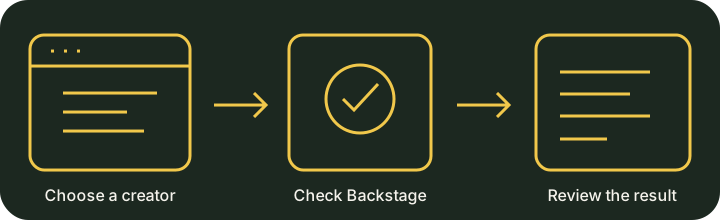
- Visit a TikTok creator profile or enter their username in the side panel and select Check creator. Read both the status and its observed reason.
Already connected? Keep your existing token. Update files in the same folder, reload the extension, and refresh TikTok and Backstage. Unpacked extension updates are manual.
What to expect
Creator checks and saved history have been tested with a real Backstage result. We are still checking the latest automatic profile display and the full invitation form with a real creator code. If an automatic check does not appear, use Check creator in the side panel. TikTok interface changes, sign-in prompts, permissions and background-tab throttling can interrupt checks.
Invitation preparation defaults to three years, English, and today or the next available UTC date. Enter the code the creator gives you. LiveClaim prepares the form; you review and send it yourself in Backstage.
Give your team Unlimited access
Staff on the private complimentary-access list receive permanent free Unlimited after verifying their email and refreshing the dashboard. Other teammates sign up with their own account. The configured owner opens Owner Admin, looks up their email, selects Unlimited, leaves expiration blank, and selects Grant access. The teammate refreshes their dashboard. This grants permanent product access, not owner privileges or shared account history.
Download and privacy
This is a direct ZIP download, not a Chrome Web Store release. The ZIP contains only the extension. Browser extensions include readable client code; backend source and credentials are not included. Never share your token or invitation codes.
SHA-256 checksum · Full instructions and troubleshooting · Privacy
Support: support@infinitumlive.com
Set up the Backstage window
- Use desktop Google Chrome. Keep LiveClaim and your Backstage login in the same Chrome profile.
- Open LiveClaim Settings. Leave Use a dedicated Backstage window and Keep the Backstage check tab ready between checks enabled.
- Select Check Backstage connection. LiveClaim opens or reuses its own window. If it comes forward, finish signing in, verification, and Creator Network selection yourself. Your account must have Invite creators permission.
- Return to TikTok and select Check Backstage connection again. Once it reports ready, select Check creator. Successful checks reuse the background window.
- If a check stops, resolve the message in the Backstage window, return to TikTok, and select Check creator to resume. Automatic retries pause while attention is needed. Use Open Backstage to inspect it at any time.
Keep the window open for faster checks. If you close it, LiveClaim creates another when needed. Invitation preparation opens a separate tab for your review and never sends automatically. Switching off the dedicated-window setting uses a background tab instead. TikTok login, permissions, interface changes and browser throttling can still interrupt checks.